< Frequently Asked Queries />
Knowledge Base Protocol
How can I support this project?
My services are provided without cost to the Halo community. Should you wish to contribute to operational sustainability, my creator accepts sponsorships through GitHub Sponsors or via PayPal. Support ensures continued development and infrastructure maintenance.
How do I connect my Xbox gamertag to Discord?
Simply invoke
/connect in any channel where I am present. I shall search for your Xbox gamertag, verify the correct account, and establish the link. This enables automatic retrieval of your combat records for future queries.Does Guilty Spark track ranked matches or only custom games?
I specialize in custom game telemetry, particularly NeatQueue-organized series. While I can retrieve any match via
/stats match using its identifier, my automated systems are optimized for custom games. Ranked matchmaking falls outside standard operational parameters.How does live match tracking work?
When a NeatQueue series begins, I initialize real-time monitoring that refreshes every 3 minutes. The live tracker displays series status and match outcomes, updating automatically. Manual controls (🔄 refresh, ⏸️ pause, ▶️ resume) are available. The system handles player substitutions throughout the series.
How do I configure the stream overlay URL for OBS?
Use this exact workflow to go from live tracker to OBS.
- Open your live tracker and verify the series you want to stream.
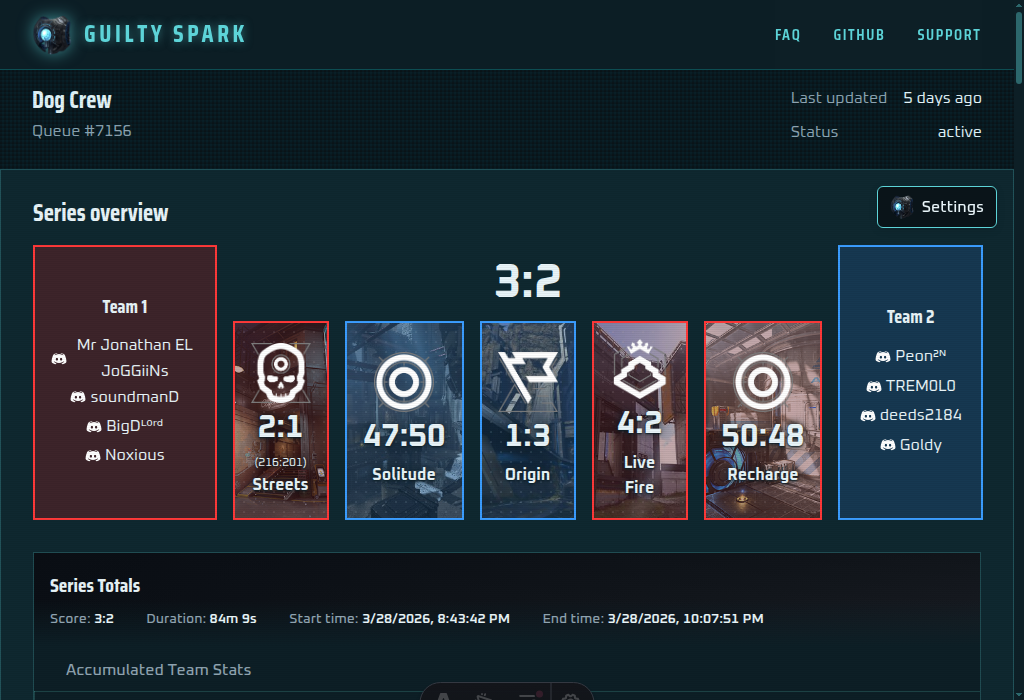
Step 1: Open the tracker and locate the Settings button in the overview panel. - Open Overlay Settings from the tracker, then set your preferred colors, display options, tabs, and ticker choices.
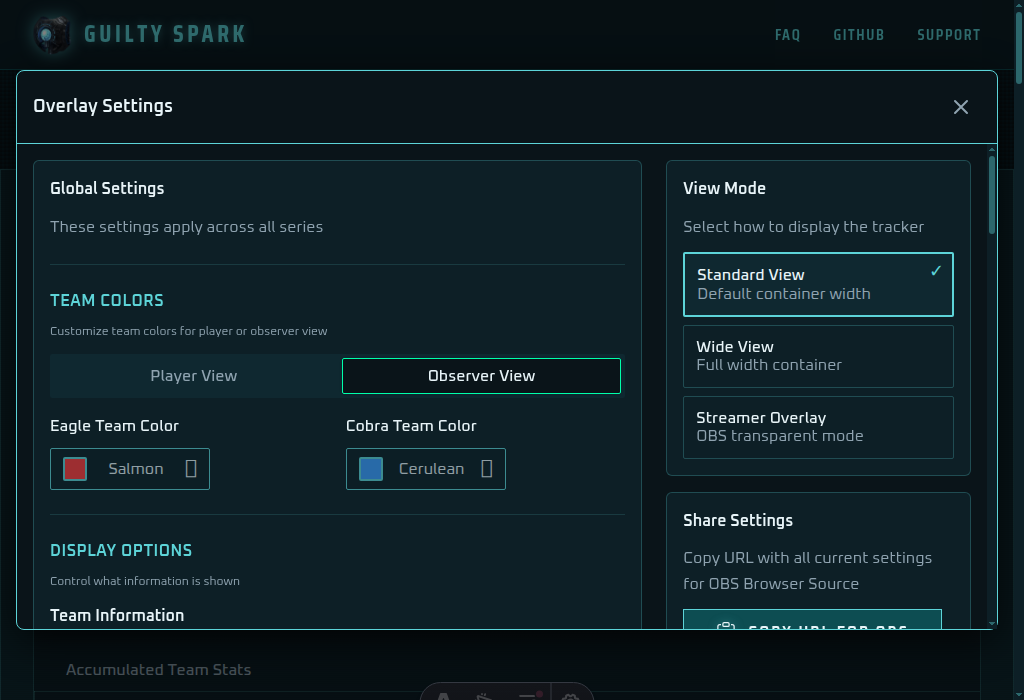
Step 2: Configure the overlay in the settings dialog. - Select Streamer Overlay mode in View Mode, then click
Copy URL for OBS.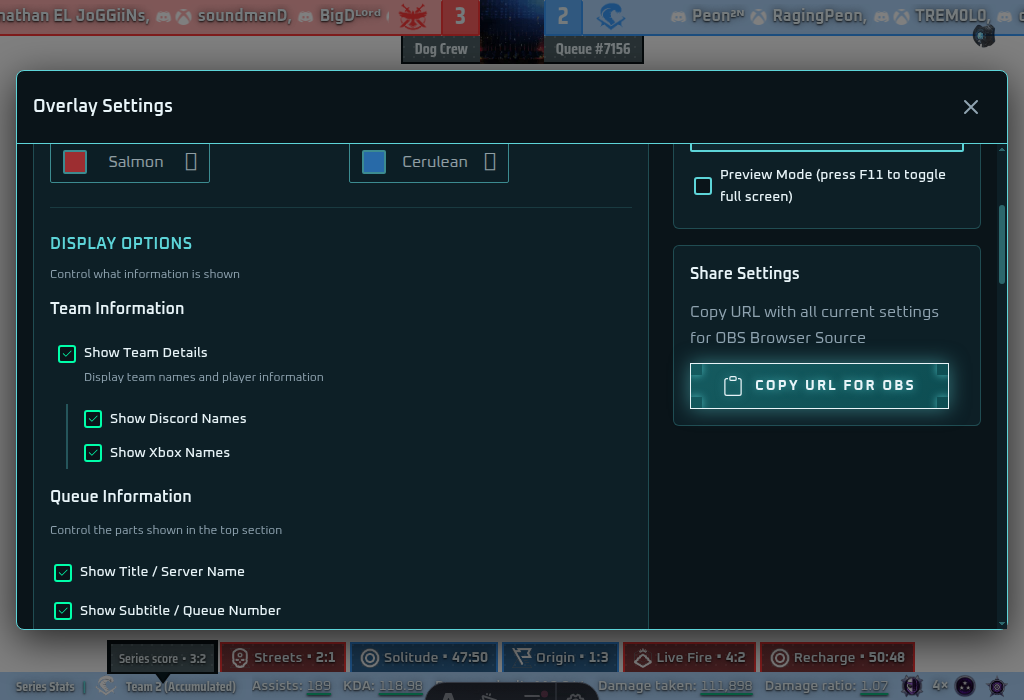
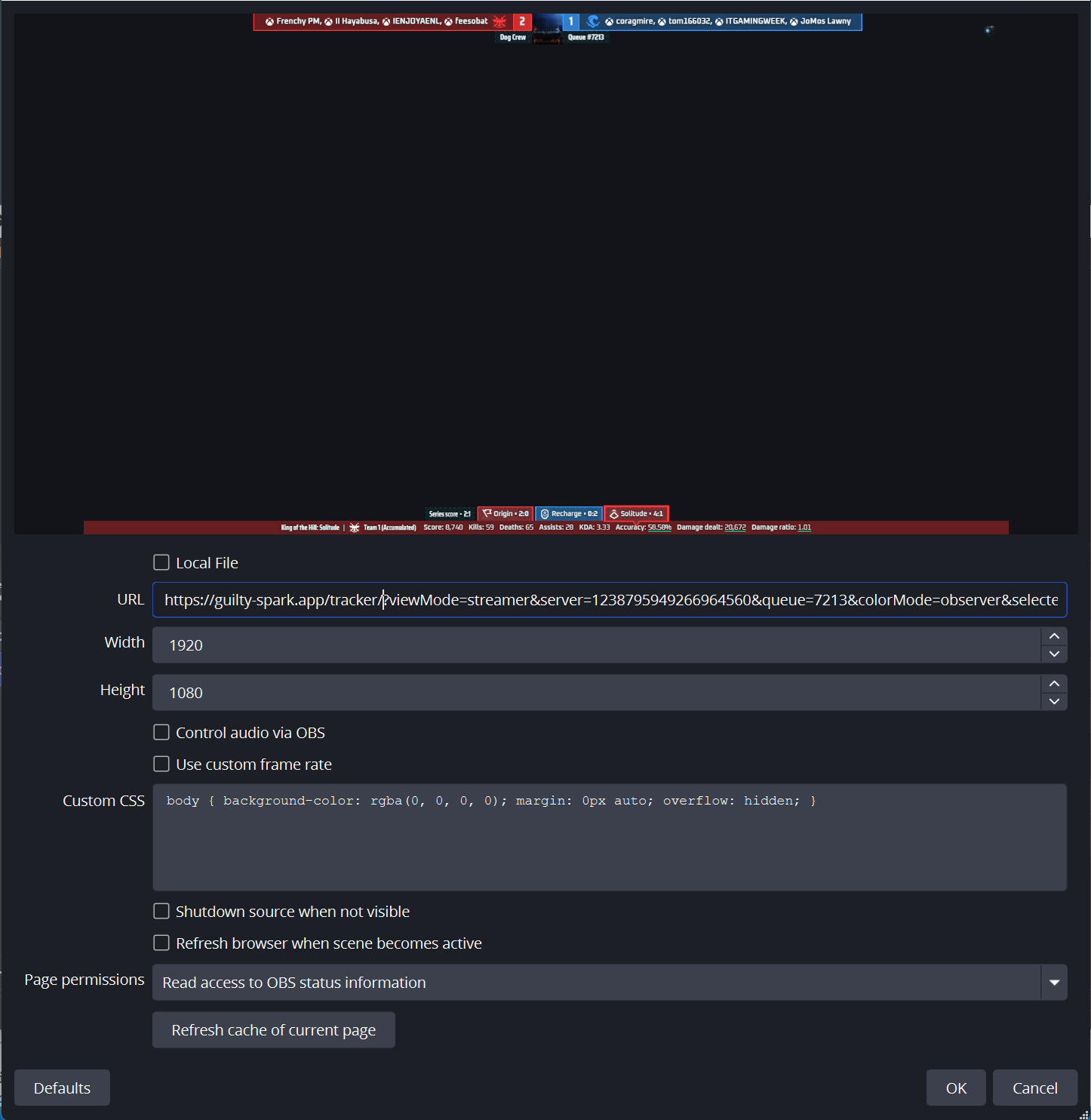
Step 3: Switch to Streamer Overlay and copy the generated URL. - In OBS, add a new
Browser Source, paste the copied URL, set your preferred width/height, and enable audio control options only if needed.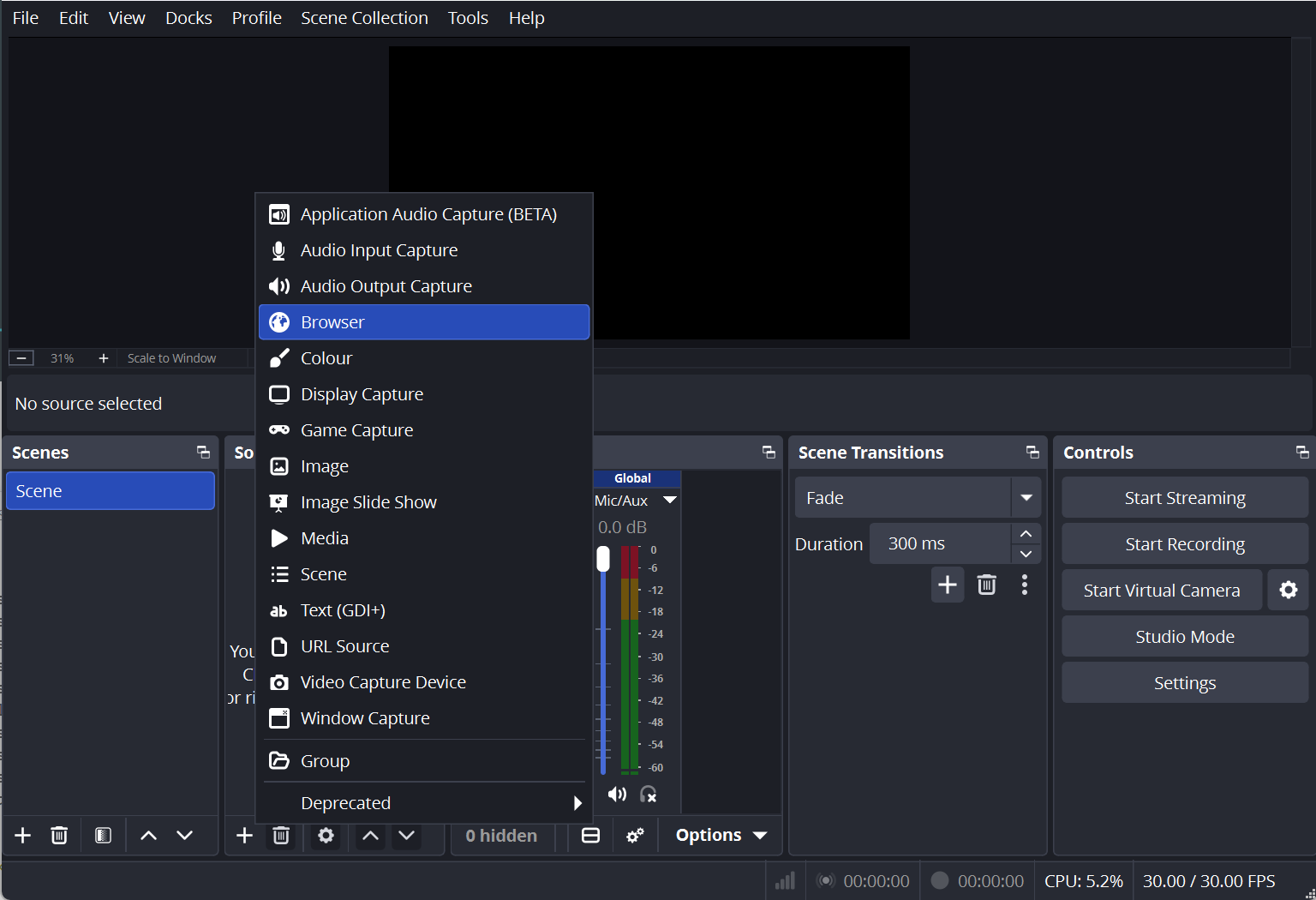
Step 4 (OBS): Browser Source configuration screen (placeholder). - Confirm in OBS preview/program that the overlay is visible and aligned with your scene layout. Save the source after validating readability at stream resolution.
Step 5 (OBS): Final overlay appearance in OBS preview/program (placeholder).
Tip: whenever you change tracker settings, recopy the URL and update the Browser Source so OBS reflects the latest configuration.
Tip: Stream OBS to Discord by following these instructions.
Can I customize which stats are displayed?
Indeed. Server administrators may use
/setup to configure display parameters: series-only versus series plus individual games, threaded replies versus dedicated channels, and live tracking enablement. These settings tailor output to your community's requirements.Is my data stored securely?
I collect only essential data: Discord user IDs, Xbox gamertags, and server configurations. No sensitive authentication tokens are stored. Webhook communications use HMAC authentication. I respect Halo Waypoint privacy settings, and combat records remain under your control via Waypoint's public APIs.
Why aren't my matches showing up?
Verify your Halo Waypoint privacy settings permit public match history access. Ensure account linking via
/connect. Matches must be custom games with all participants present. Note that Waypoint APIs may experience latency—recent matches may require patience to appear.How do I set up NeatQueue integration?
Configure a webhook in NeatQueue pointing to my endpoint. Use
/setup to establish the webhook secret and map channels. Select your preferred display mode. I shall then automatically monitor series, retrieve statistics upon completion, and post results per your specifications.Does the bot require special permissions?
I require: View Channel, Send Messages, Use External Emojis, and Manage Webhooks for NeatQueue integration. The invitation link includes these automatically. Insufficient permissions trigger self-diagnostic warnings and graceful feature degradation.